Posts

Showing posts with the label Android

S.O.L.I.D. Class Design Principles

Abbreviation Full Form Definition Reason S Single Responsibility Principle A class should have only one reason to change i.e. should have only one purpose to serve.  - loosely coupled - less change lead to less break down of application - helps to change identity of object without affecting other modules O Open-Closed Principle A class should be open for extension closed for modification. - Anyone need to make change in your class has to inherit the class and change. This allows the existing functionality to stay intact. L Liskov Substitution Principle Derived types should always be substitutable by its parent class (base type). Derived types should be compatible with its base type. For e.g.: Square is a Rectangle i.e. Square represents a Rectangle. In case, if we try to set dimension of a Rectangle reference pointing to Square instance, the flow will be weird as it will always override the dimension of rectangle. I Interface Seg...
Access Youtube Video via Android app

Youtube video are provided with a distinct key like -         https://www.youtube.com/watch?v=7fC016i3Zpg        https://www.youtube.com/watch?v=LbuUvVe_Gqc&t=37s 1. You need to download Youtube supporting library from here     and add paste it to the lib folder of app followed by adding it to gradle file as shown below. compile files( 'libs/YouTubeAndroidPlayerApi.jar' ) 2. Sync your project 3. Once you have the key, add the below code in your activity-       if (YouTubeIntents. canResolvePlayVideoIntentWithOptions( this )) {          //Opens in the YouTube app in fullscreen and returns to this app once the video finishes                      startActivity(             YouTubeIntents. createPlayVideoIntentWithOptions ( context , video.getKey(), true , true )     ...

URL hit by Retrofit Client

The URL that is formed and hit by EndpointInterface using Retrofit Client can be obtained by below: call.enqueue( new Callback<VideoList>() { @Override public void onResponse(Call<VideoList> call, Response<VideoList> response) { Log. d ( "URL: " , call.request().url().toString()); // here if (response.isSuccessful()) { } } @Override public void onFailure(Call<VideoList> call, Throwable t) { } });

Audio Insertion

1. Add audio into res -> raw folder 2. In Activity class, add the below code to your class where you wish to play sound - MediaPlayer ring = MediaPlayer. create (MainActivity. this , R.raw. applause ); ring.start();

Butter Knife: ease to bind view in activity

ButterKnife is an open source that eases the way to bind view in activity class. Below is the example: 1. In build gradle,           compile  'com.jakewharton:butterknife:8.5.1' annotationProcessor 'com.jakewharton:butterknife-compiler:8.5.1' 2. Suppose there are two buttons having id -  android :id= "@+id/hiBtn"   android :id= "@+id/byeBtn" 3. In activity .java class,     a. Initialize your binding button variable as- @BindView (R.id. hiBtn ) Button hiBtn ; @BindView (R.id. byeBtn )       Button bye Btn ;     b.         For Activity class, in onCreate() method, ButterKnife. bind ( this );         For Fragment class, in onCreateView() method View view = inflater.inflate(R.layout.fancy_fragment, container, false ); ButterKnife.bind( this , view);    c.  And the button click event as, ...

Issue : Gradle Plugin Version is not in sync with Android version

Image
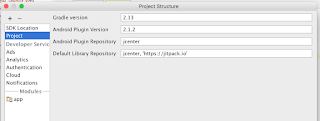
1. On execution of your android application, if the below issue occurs -  Gradle Plugin Version is not in sync with Android version 2. This means you need to update your gradle version. 3. In order to resolve the problem  Open Android studio Go to File -> Project Structure -> Project Here you will see, version of Gradle and Android- 4. In order to change that the version, go to below mentioned link- https://developer.android.com/studio/releases/gradle-plugin.html Here, you will see the compatible versions given in tabular format- 5. Update the Gradle version as suitable. 6. After updating, Android Studio will start syncing process.  7. Go ahead and run your application.

Spinner for Dropdown

Image
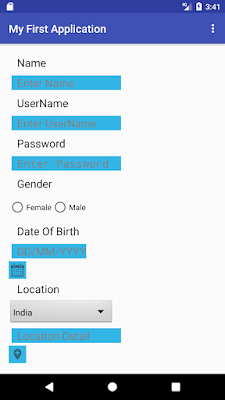
Spinner helps you to display the set of data (collection). It allows teh data to be displayed in drop down fashion. Example: 1. Lets define a static String array in Android XML file. <? xml version= "1.0" encoding= "utf-8" ?> < resources > < string-array name= "countries" > < item >India</ item > < item >U.A.E.</ item > < item >Nepal</ item > < item >China</ item > < item >Australia</ item > < item >United States</ item > < item >Europe</ item > < item >United Kingdom</ item > < item >Australia</ item > < item >Canada</ item > < item >Japan</ item > < item >Singapore</ item > </ string-array > </ resources > 2. Configure Spinner in your activity...

String constant java class(created- StringConstant.java) vs string resource (strings.xml)?

Below are few points to consider before defining any string in any of the file- 1. Organize based on what makes sense!     Like, put string constants that highlights database connection credentials, table name, column name or any internal used constant in Java class where else the strings that are displayed to the user should go into strings.xml file. In short, strings.xml holds DISPLAY strings. 2. Constant declared in strings.xml file will be available only to context. Hence, whenever you want to use them make sure you have context to access them. Like in Adapters.

Check If table exist or not

​To check if table exists or not , below is the code snippet-    import java.sql.Connection;    import java.sql.DatabaseMetaData;    import java.sql.ResultSet;     public class Main {        public static void main(String[] argv) throws Exception {          Connection c = null;          DatabaseMetaData dbm = c.getMetaData();          ResultSet rs = dbm.ge​​tTables(null, null, "employee", null);          if (rs.next()) {            System.out.println("Table exists");           } else {            System.out.println("Table does not exist");           }        }     } For Android internal memory, SQLLite -      public boolean doesTableExists(Stri...

Difference between dp, dip, sp, px

Screen density is the amount of pixels within an area (like inch) of the screen. Generally it is measured in dots-per-inch (dpi). Screen density is grouped as low, medium, high and extra high. Resolution is the total number of pixels in the screen. dp: Density Independent Pixel , it varies based on screen density. In 160 dpi screen, 1 dp = 1 pixel. Except for font size, use dp always. dip: dip == dp. In earlier Android versions dip was used and later changed to dp. sp: Scale Independent Pixel , scaled based on user’s font size preference. Fonts should use sp. Always use dp and sp only. sp for font sizes and dp for everything else.

Read/Write Images

To read Image from Gallery- I worked on ImageButton to get Image from gallery: private void uploadImageClicked() {     new Thread(new Runnable() {         Intent intent = new Intent(Intent.ACTION_PICK);         public void run() {             openGallery(intent);         }     }).start(); } private void openGallery(Intent intent) {     intent.setType("image/*");       startActivityForResult(intent, 0); } The above piece of code open the Gallery to select the Image as desired. Here, we create an INTENT in order to access Gallery and hence, set the path as "image/*" and call startActivityForResult(intent, 0) so as to start the activity that utilize intent. To write Image from Gallery-     @Override     public void onActivityResult(int requestCode, int resultCode, Intent data) {       ...

Picasso Vs Glide

Below link gives great explaination between them- https://inthecheesefactory.com/blog/get-to-know-glide-recommended-by-google/en

Parcelable Object - passing data between intents

It is explained in a simple and elaborated way under below link- https://guides.codepath.com/android/using-parcelable#passing-data-between-intents